Tutorials · 2026-05-13 · SpiderValidators
ScreenConnect - Suppressing Guest-Side Notifications & Banners
Learn how to suppress unnecessary ScreenConnect guest notifications and banners while keeping consent and the download/install flow intact.
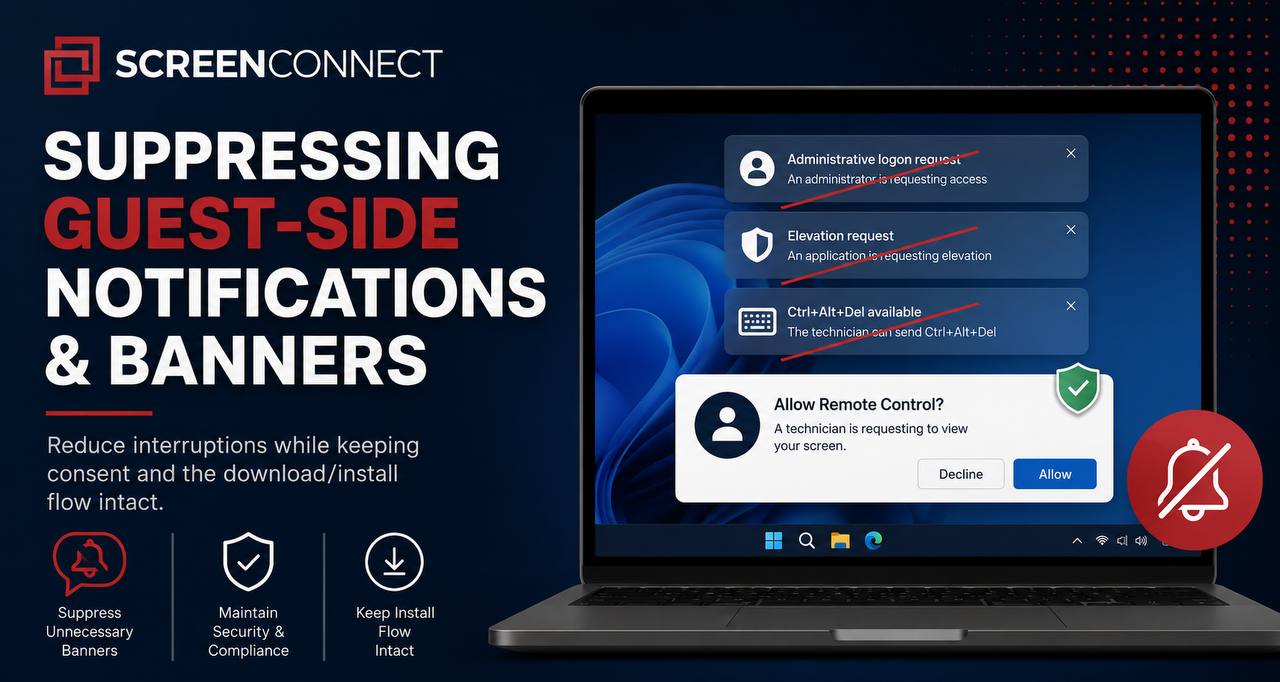
Suppressing Guest-Side Notifications & Banners
ScreenConnect can display several notifications, banners, and prompts during a remote support session. Some can be hidden at the text/resource level, while others require changing permissions or global access settings.
This guide explains how to reduce unnecessary guest-side notifications while deliberately keeping the consent dialog and the download/install flow intact.
1. Text-Level Suppression — Appearance -> Resources
The fastest approach is to suppress the notification text itself. This keeps the underlying feature functional while preventing the associated message from being displayed.
- Open Admin -> Appearance -> Resources.
- Search for each resource key listed below.
- Edit the resource and clear its value.
- Save the change.
| Resource Key | What It Controls |
|---|---|
NotificationAdministrativeLogonRequestMessage |
Administrative logon request banner. |
NotificationElevationRequestMessage |
Elevation request banner. |
NotificationSendCrtlAltDeleteMessage |
Ctrl-Alt-Delete available banner. |
NotificationBannerCapturingErrorMessage |
Screen-capture error banner. |
NotificationBannerLogonCredentialsMessage |
Stored credentials banner. |
HiddenAppBalloonTitle |
"Still going..." tray balloon. |
HiddenAppBalloonTextTitleFormat |
"{0} is running in the background" notification text. |
Important: This is a text-only suppression method. The underlying feature remains functional; only the associated notification text is removed.
2. Permission-Level Suppression — Security -> Roles
If a notification is associated with a capability that your technicians do not need, you can remove the capability itself from the appropriate role.
- Open Admin -> Security -> Roles.
- Edit the Control Host role.
- Locate the permission associated with the feature.
- Uncheck the permission you want to remove.
- Save the role.
| Banner / Feature | Permission to Uncheck |
|---|---|
| Print-sharing banner | PrintInSession |
| Silent tool run — SYSTEM, shared | RunSharedToolAsSystemSilently |
| Silent tool run — SYSTEM, personal | RunPersonalToolAsSystemSilently |
Permission Change Trade-Off
Unlike resource-level suppression, changing a role permission does not merely hide the notification. It removes the capability for users assigned to that role.
For example, disabling PrintInSession removes remote printing functionality, while disabling the silent SYSTEM tool permissions prevents technicians from performing those silent SYSTEM-level operations.
Review your team's workflow before changing these permissions.
3. Global-Level Suppression — Security -> Access Management
Some capabilities, including elevation and Administrative Logon, are not controlled exclusively through individual roles. They can be managed at the system level.
- Open the Security section in the administration interface.
- Locate Privileged Access / Access Management.
- Review the settings for Elevation Requests and Administrative Logon.
- Disable the relevant feature if your environment does not require it.
Global setting warning: These changes can affect every session on the server rather than only a specific technician role. Confirm that other teams or workflows do not depend on these capabilities before disabling them.
4. What to Deliberately Keep
Not every guest-side message should be suppressed. Two parts of the connection workflow are particularly important to retain.
Consent Dialog
The consent dialog provides the remote user with an opportunity to approve the remote-control session and can be important for organizational policy, transparency, and compliance.
The relevant resource includes:
ConsentHostConsentButtonText
The HostSessionWithoutConsent permission controls whether a session can bypass consent. Keep this permission disabled where user consent is required by your organization's policy.
Launcher / Download and Install Flow
The launcher is part of the mechanism that allows the guest to download and run the required ScreenConnect component. It should not be confused with the optional notification banners.
Relevant resources include:
JoinPanel.Launcher.*
Removing or disabling these elements can interfere with the actual connection and installation process.
5. Additional Items Worth Reviewing
Feedback Survey Popup
If technicians or customers find the post-session feedback survey intrusive, review resources associated with:
GiveFeedbackPanel.*
FeedbackDismissLinkText
Depending on the version and configuration, reviewing FeedbackTitleText and the dismissal controls may help reduce unnecessary survey prompts.
Beep on Connect
CommandToggleBeepOnConnect is a per-technician client setting rather than a server-side notification resource. If the connection sound is a recurring complaint, consider standardizing the setting through your organization's endpoint-management or Group Policy process where appropriate.
Audit Trail Impact
Removing a capability can have consequences beyond the user interface. For example, disabling PrintInSession or silent-tool permissions means those actions can no longer occur.
Before changing permissions, review existing Session Event Automations and Audit Log workflows to ensure that no automation or reporting process depends on those events.
Test the Role First
Rather than immediately changing the production Control Host role, clone it into a test role and apply the proposed changes there.
- Create a test role based on the existing Control Host configuration.
- Apply the resource or permission changes.
- Assign the test role to one technician.
- Perform a complete connection test.
- Verify consent, installation, notifications, permissions, and auditing.
- Roll out the changes only after confirming the expected behavior.
Watch for Version Changes
Administration menus and configuration locations can change between ScreenConnect releases. If your environment is upgraded, re-check the relevant paths and resource names before applying an old configuration procedure.
Recommended Approach
For most environments, start with text-level suppression when the objective is simply to reduce unnecessary guest notifications. This provides the least disruptive change because the underlying functionality remains available.
Use permission-level suppression only when the associated capability is genuinely unnecessary. Use global access-management changes carefully because they may affect users and sessions across the entire environment.
Most importantly, preserve the consent experience and the launcher/download flow unless your organization's security and operational policies explicitly require otherwise.